Step 1: Log in - MY ACCOUNT, click on SCORING CONTROL
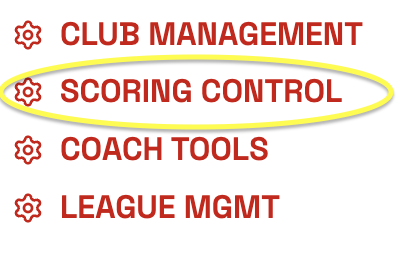
Step 2: Click on SCORING CONTROL for the meet you want to display a scoreboard for.

Step 3: On the right side of the screen, click SCOREBOARDS.

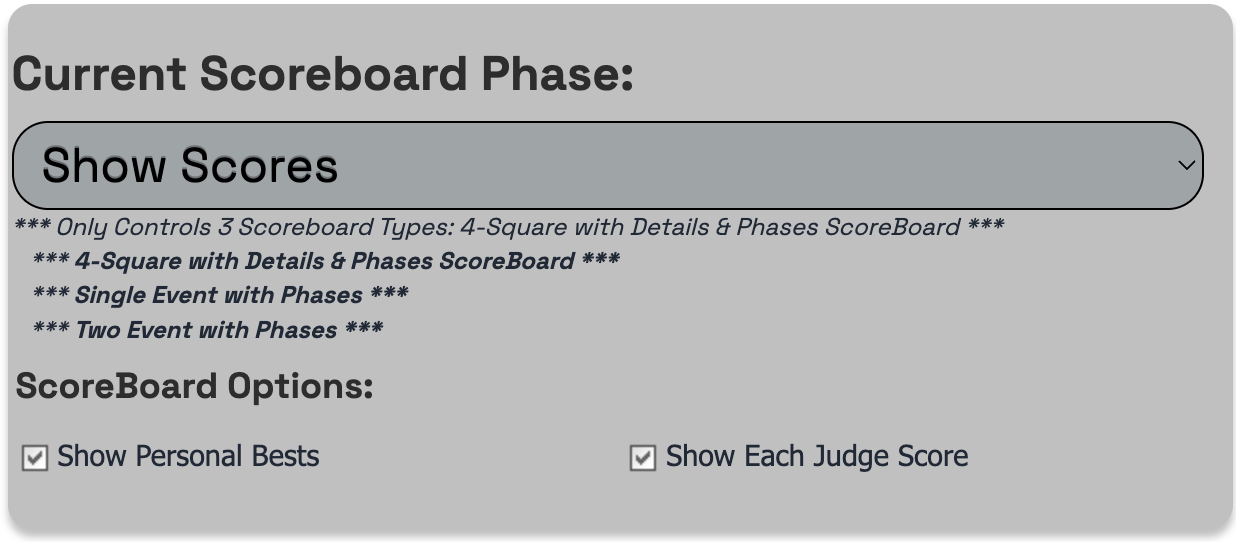
Step 4: Check the settings on the bottom of the "Current Scoreboard Phase". You can choose if you want to "Show Personal Bests" which will entail fireworks showing up when the score is displayed for that athlete. You can also "Show Each Judge Score", if multiple judges. Unchecking the box will disable those features.
Step 5: Click LAUNCH A SCOREBOARD

Step 6: Scroll down the screen until you see "4 Square Event", look to the right and then click "4 Events Details w/Phases". This is the most commonly used.

The QR code shown is specific to this meet, once a score is entered the QR code will go away and the scores will start showing up. If there is no score entered within two minutes, the QR code will come back up.
Was this article helpful?
That’s Great!
Thank you for your feedback
Sorry! We couldn't be helpful
Thank you for your feedback
Feedback sent
We appreciate your effort and will try to fix the article