**NOTE - You will not find a scoring button until you have changed the red drop down from UPCOMING to ACTIVE.
Step 1: Log In - MY ACCOUNT - click on SCORING CONTROL
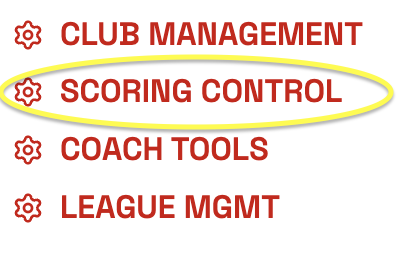
Step 2: Find the meet you are looking to enter scores in for and click on SCORING CONTROL.

Step 3: Change the Meet from UPCOMING to ACTIVE.

Step 4: Click on SCORE ENTRY MENU on the top of the screen.

Click on EASY SCORE ENTRY

Step 5: Set all the drop downs for Session, Event, Team and Athlete.

Step 6: Enter the gymnasts score and click SUBMIT SCORE. You can click on the colored buttons to enter a score. Or you can click in the white box and type in the number.
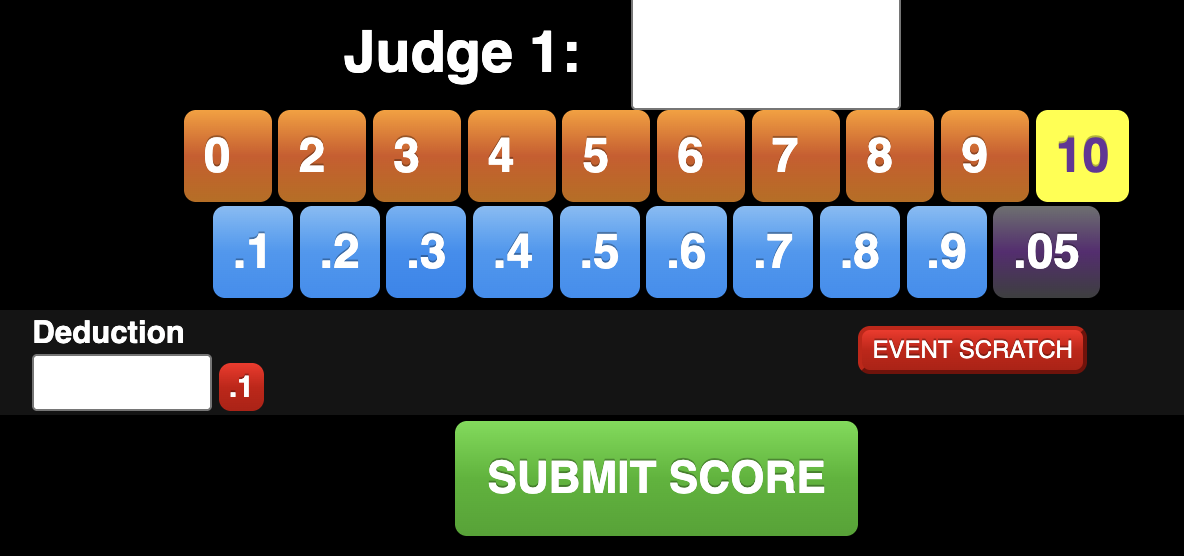
Once a score is entered you will see it show up for that athlete on the right side. If you can not see the score on the left - rotate your screen to a landscape version.
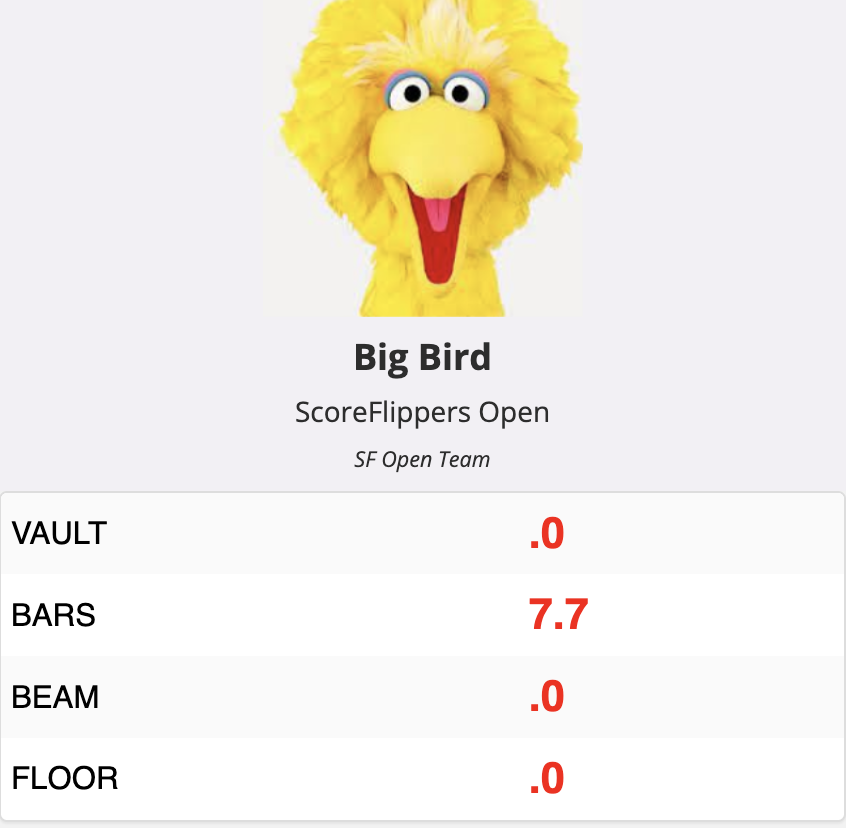
**You will notice any athlete who has received a score is no longer in the drop down (to prevent mistakes). To see these gymnasts again find the ALL checkbox to the right of the gymnast drop down.

If you entered a score incorrectly for an athlete and need to change a score. Please see How to Change / Edit A Score.
Step 7: When the team is done on that event, click the EVENT VERIFY button. You can verify and check off all scores here.

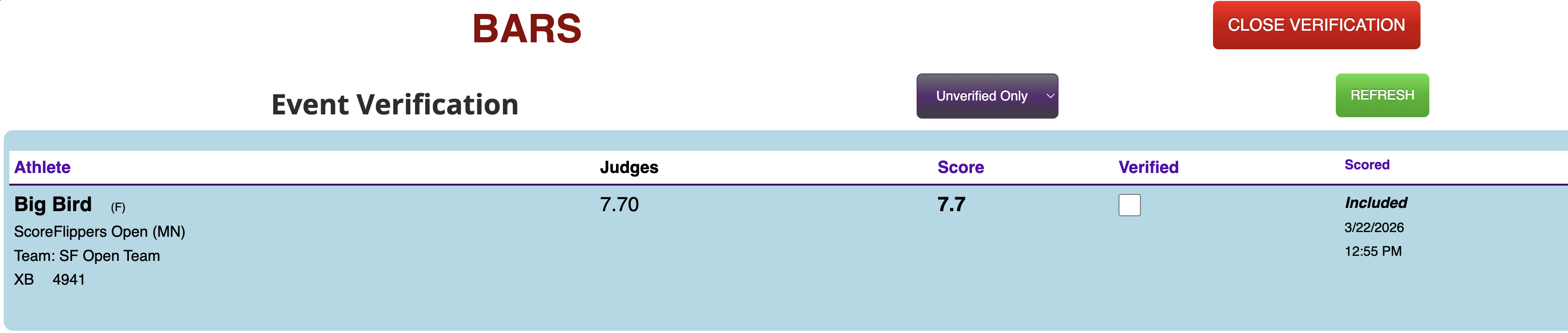
**After all scores are entered and verified don’t forget to change the meet from ACTIVE to COMPLETE. The gymnasts stats and path to state will not take affect until the meet is COMPLETE.
Was this article helpful?
That’s Great!
Thank you for your feedback
Sorry! We couldn't be helpful
Thank you for your feedback
Feedback sent
We appreciate your effort and will try to fix the article