Step 1: Go to the Athletes tab on your meet.
Step 2: Click SQUAD BALANCER.
Step 3: Before you assign athletes, Click the NEW SQUAD button. Do this for how many squads you want in this meet.
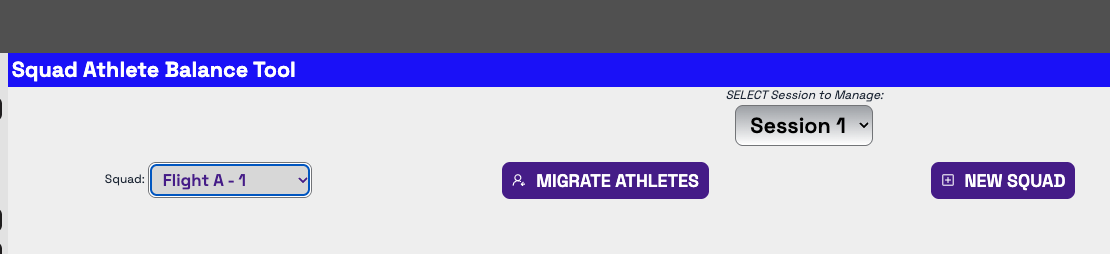
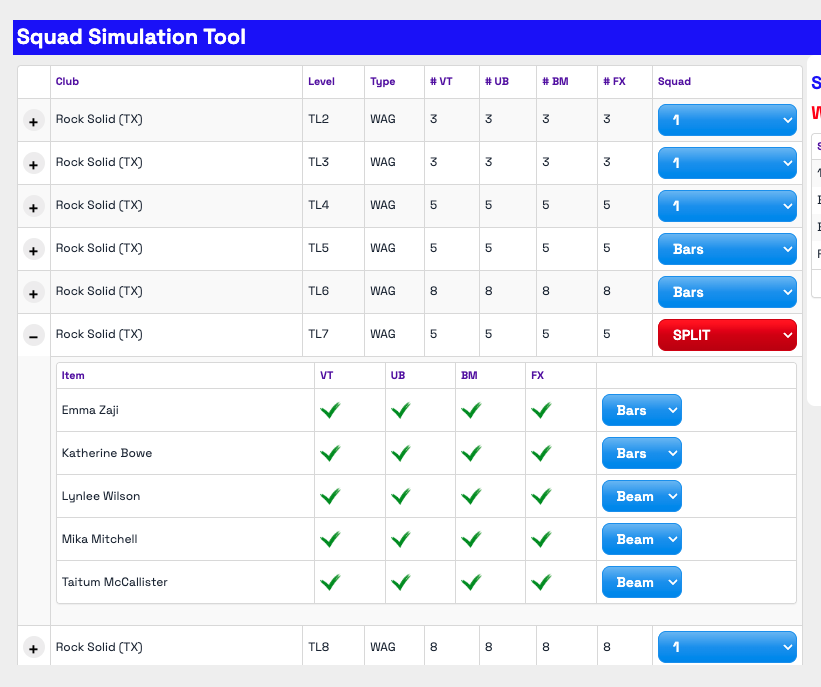
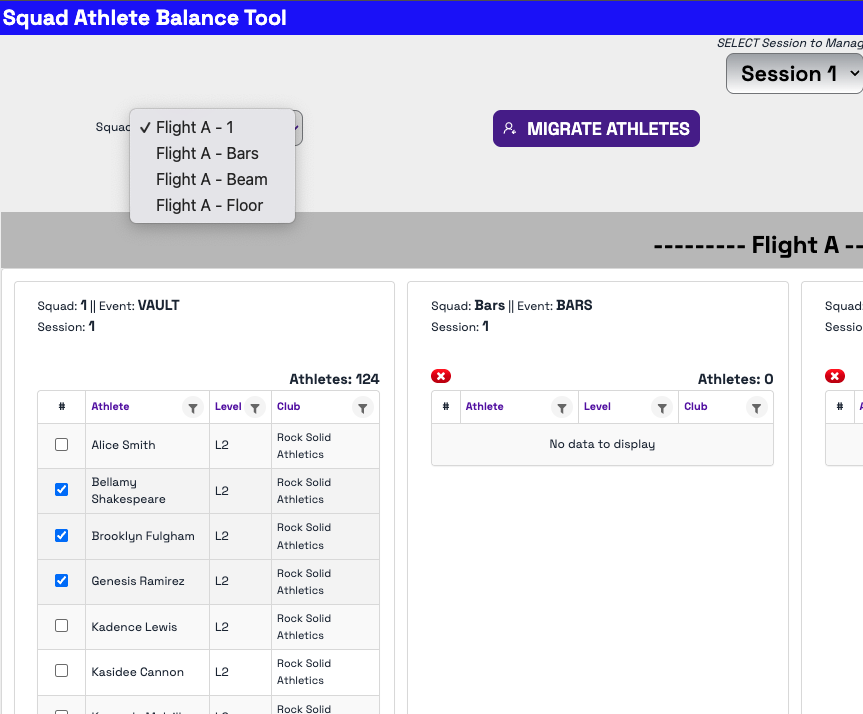
Step 4: Once all your squads are created and named, you have 2 options for assigning athletes to squads (or use a combination of both).
- SQUAD SIMULATION TOOL - you can set an entire level(s) into one squad, or you can hit the plus button on the left to open up the athletes within that level and split particular individuals into specific squads.
- SQUAD ATHLETE BALANCE TOOL - select the checkboxes of the athletes you want to move. Select the squad from the drop down you want to move them to, then hit MIGRATE ATHLETES.
Follow these steps until all athletes are in squads. You can check your work by going to REPORTS and looking at the HEAT SHEET & SQUADS report.
**Note: You can edit the names of the Squads under the SESSION tab. Open the session you want to edit, you will find the squads on that screen.
Was this article helpful?
That’s Great!
Thank you for your feedback
Sorry! We couldn't be helpful
Thank you for your feedback
Feedback sent
We appreciate your effort and will try to fix the article