Step 1: From within your meet in Scoring Control, find the SCOREBOARDS button. (if you are having trouble finding it, go back to the Settings page first.)
Step 2: Scoreboard Phases & Options:
- SHOW SCORES - this is what you will use when you want the scoreboard to flash live scores
- DISPLAY MEET QR CODE - this works great before the meet or between sessions so parents and coaches can scan and find meet results instantly.
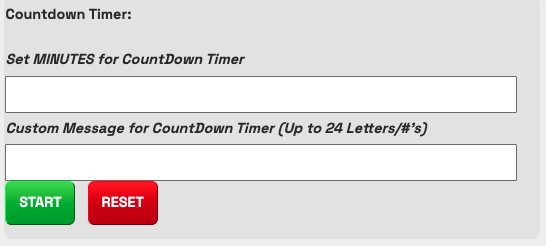
- TIMER: set the minutes for the countdown and a customer message for the timer, then select START.
- AMERICAN FLAG - have you ever been to a meet where they forgot to bring a flag for the National Anthem!? We have!
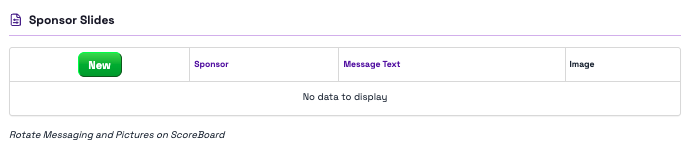
- SHOW SPONSOR SLIDES - upload images / logos of your meet sponsors and present them on the scoreboard during breaks
- SCOREBOARD OPTIONS-
- Show Personal bests - when this is turned on, the athletes will get a PR pin by their name and also FIREWORKS!! The personal bests come from all of the scores presented in ScoreFlippers sytem.
- Show Each Judge Score: If you are on a session with 2 judges, you can turn this off to only see the final score. Turn it on to see both J1 and J2.
- MESSAGING FOR SCOREBOARD FOOTER - leave a note that stay at the bottom of the Show Scores Screen (max of 50 characters)
- SCOREBOARD OVERRIDE MESSAGES- use this to make a quick announcement. It will stay up there until you hit the delete button.
Step 3: Click LAUNCH A SCOREBOARD
Step 4: Pick your display type that works best for your event:
- WAG
- 4 Square
- Meet Ref
- Single Event w/Phases
- Two Events w/Phases
- Single Event Most Recent Score
- Latest 10 Scores Displayed
- Leaderboards
- Team Invite Results
- MAG
- Single Event Scoreboard
- 4 Square Event Scoreboards
- Score Entry Log
- 4x4
- Single Event Scoreboard
- 4 Square Event Scoreboards
- Score Entry Log
- T&T
- 4 Scroll Events
- 4 Scroll Events w/Details
- Custom
- Show All Events (No matter what Discipline)
- 4 Scroll Events
- 4 Scroll Events w/Details
- Show All Events (No matter what Discipline)
Was this article helpful?
That’s Great!
Thank you for your feedback
Sorry! We couldn't be helpful
Thank you for your feedback
Feedback sent
We appreciate your effort and will try to fix the article