A comprehensive Walkthrough of features for your coaching team!
Welcome to SF Class! This guide will help you navigate the SF Class system efficiently to manage your classes, track athlete progress, and handle daily coaching tasks.
TABLE OF CONTENTS
- Getting Started
- Logging In
- Accessing the Coach Dashboard
- Essential Daily Tasks
- Quick Tips for Success
- Need Help?
- Key Reminders
Getting Started
Logging In
- Open your web browser on a computer or laptop.
- Navigate to www.scoreflippers.com
- Click 'SF CLASS'
- Select your gym from the dropdown menu
- Click 'Login or Create Account' in the middle of the screen
- Log in with your ScoreFlippers account credentials (Email and Password)
*If you need to Create an Account -- See the Help Doc, Create An Account
Accessing the Coach Dashboard
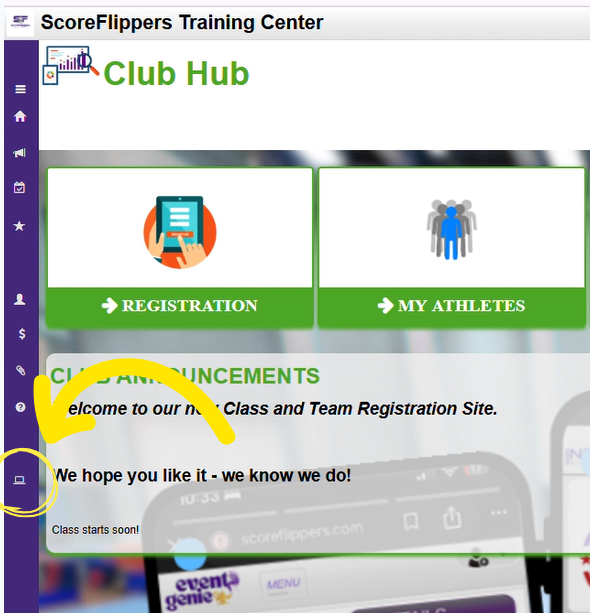
Once logged in, the software defaults to the 'Club Hub'. To access the Coach Dashboard, follow the steps below.
- Using the menu on the left of the page, click the 'Club Admin' icon that looks like a computer.
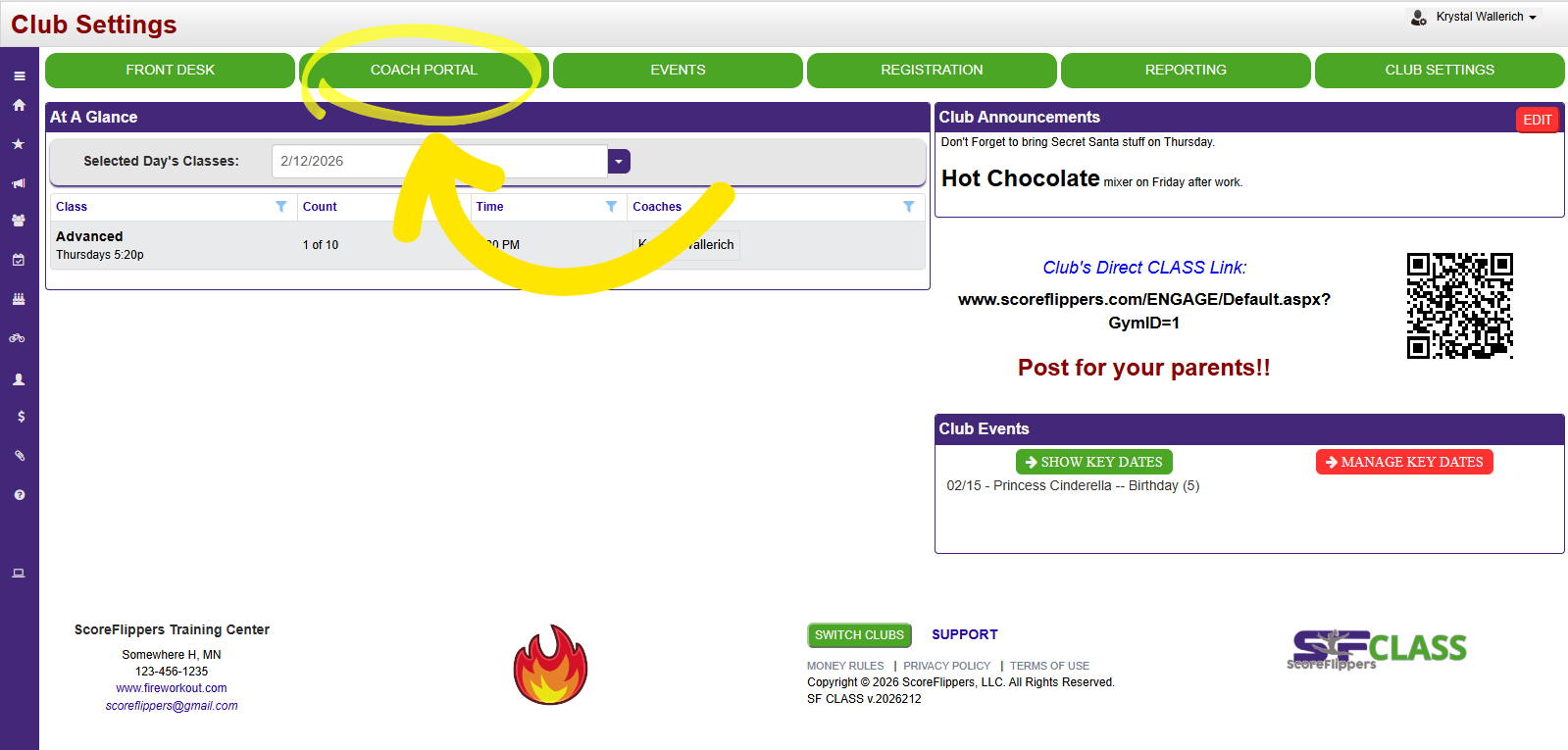
- Click the 'Coach Portal' menu button, we will be covering the features within this portal.
Essential Daily Tasks
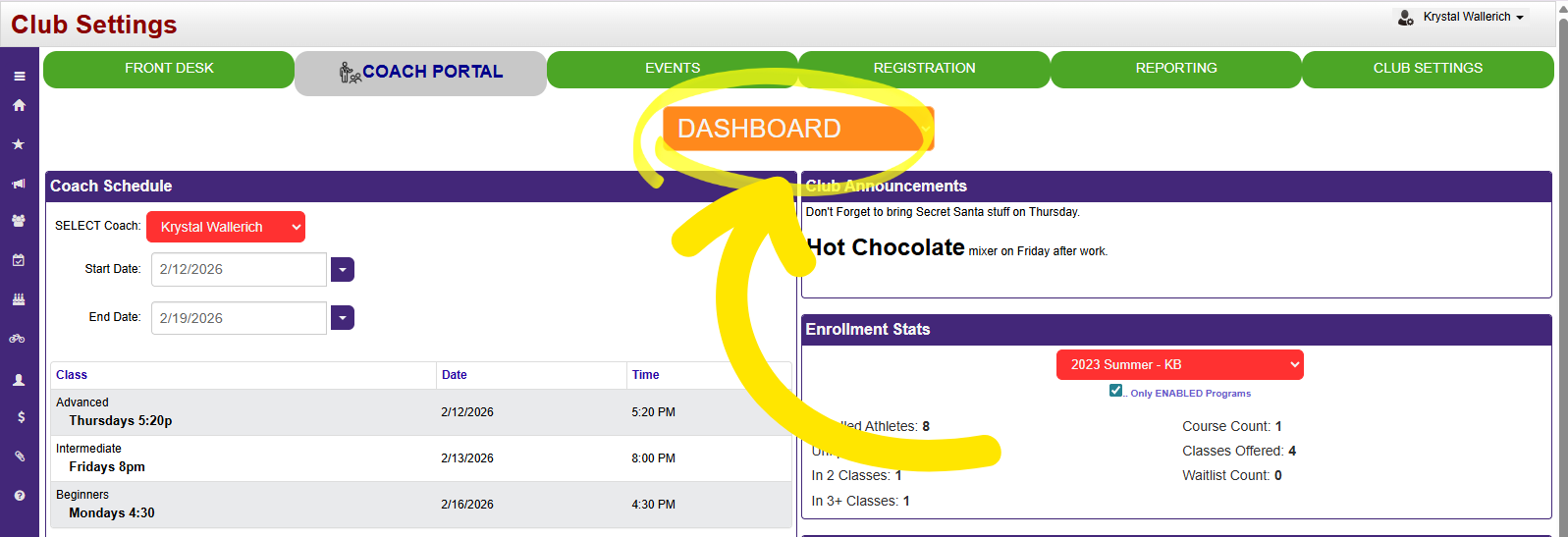
The tasks below use the Coach Portal Dropdown menu in the middle of the screen.
Taking Attendance
Location: Coach Portal Dropdown Menu→ Attendance
1. Use the filters to select your specific class
2. Mark attendance for each athlete in your class
3. If an athlete from a different class does a make-up in your class, you can mark that too
4. Attendance automatically flows to athlete profiles and reports
Viewing Class Rosters
Location: Tools Tab → Class Rosters
• View all students registered for your specific class
• Access emergency contact information and athlete details
• Export printable reports for easy reference during class
Athlete Progress Management
Skills Tracking
Location: Tools Tab → Skill Tracker
• Mark off skills that athletes have learned or passed
• Skills are linked to athlete profiles for easy parent and staff viewing
• This helps track individual progress throughout the session
Passing Grades
Location: Tools Tab → Passing Grades
1. Mark students who successfully pass a class or level
2. System captures who passed the student (you as the coach)
3. Recommend whether students should move to the next course level
4. Passing details automatically appear on athlete profiles
Finding Athlete Information
Directory Access
Location: Directory Tab
• Search for any athlete or guardian connected to your gym
• Use filters to narrow down your search
• Quickly access athlete and guardian details
• This is a simplified version of the front desk directory
Class Administration
Location: Class Administration Tab
This section helps you manage class-specific details and administrative tasks related to your assigned classes.
?Quick Tips for Success
• Daily Routine: Start each class by checking your roster and taking attendance
• Progress Tracking: Update skills and passing grades regularly, not just at session end
• Communication: Use the directory to quickly find parent contact information when needed
• Reports: Export class rosters before each session for offline reference
?Need Help?
• Technical Issues: Contact your gym's front desk staff or management
• System Support: Email Class_Support@scoreflippers.com
• Website: Visit www.scoreflippers.com for additional resources
?Key Reminders
• Always use a desktop or laptop computer for best performance
• Your attendance and skills tracking directly impacts athlete profiles that parents can see
• All progress you mark flows through to reports and parent dashboards
• Keep athlete information confidential and secure
This system is designed to make your coaching more efficient while providing valuable progress tracking for athletes and parents. Take time to explore each feature and don't hesitate to ask for help when needed!
Was this article helpful?
That’s Great!
Thank you for your feedback
Sorry! We couldn't be helpful
Thank you for your feedback
Feedback sent
We appreciate your effort and will try to fix the article