Step 1: Login - You must have Club Manager access.
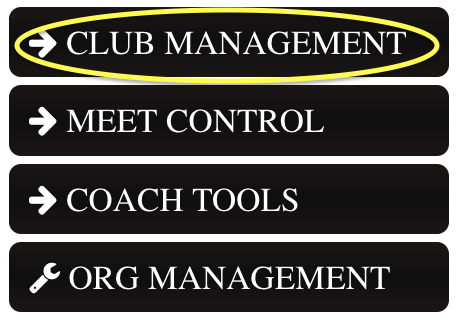
Step 2: Click DASHBOARD, then CLUB MANAGEMENT
Step 3: At the top of the screen click SCORE A MEET

Step 4: Fill in the meet name - label one meet Varsity and one meet JV. (Remember you will need to create two meets, one for JV and one for Varsity).
Fill in the Host Site and Meet Type (JV or Varsity) ** This step is very important! This is what separates the states for JV and Varsity meets.
The rest of the drop downs will be defaulted to your state.
You will need to add a Meet Director and click "NEXT - ADD SESSION".


Step 5: Add session name (JV or Varsity), you will only need one session.
Click ADD THIS SESSION TO THE MEET
(Remember you will need to create two meets, one for JV and one for Varsity.)
Click FINISH CREATING THIS MEET
Then you will click RETURN TO MEET CONTROL. 
Step 6: Now that your meet is created, you will return to the MEET CONTROL page. Find your meet and click on MEET CONTROL.

Step 7: Click EDIT SETTINGS at the top of the screen. This is where you can control more meet settings and public information that parents can look at for meet details.
**Don't forget to save your changes by clicking SAVE MEET EDITS at the top of the page.
Step 8: Find the button on the Meet Settings page that says GET QR CODE TO LIVE SCORING. This will take you to a PDF download of a QR code specifically for this meet. This will allow parents and other coaches direct access to live scores.
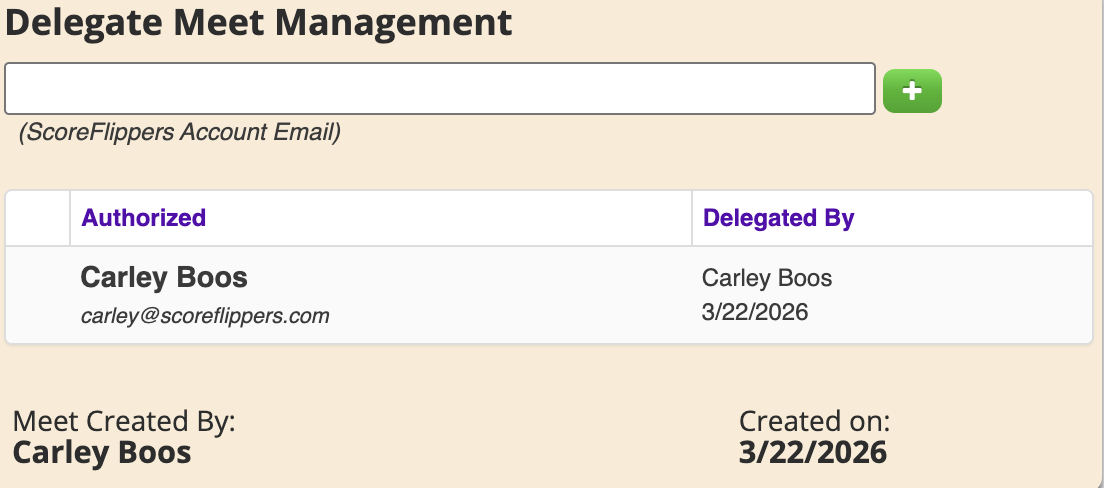
Step 9: If you have a parent or non-coach helping with scores, you can delegate them as a Meet Manager. (Make sure they have a ScoreFlippers account, and then add their email to the field).
Step 10: If you have ipads/tablets to enter in scores. Click the QR TOOLBOX button, this will pull up 3 QR codes, scan the QR code that states "Secure Score Entry". This will bring you right to the scoring screen without having to log in.

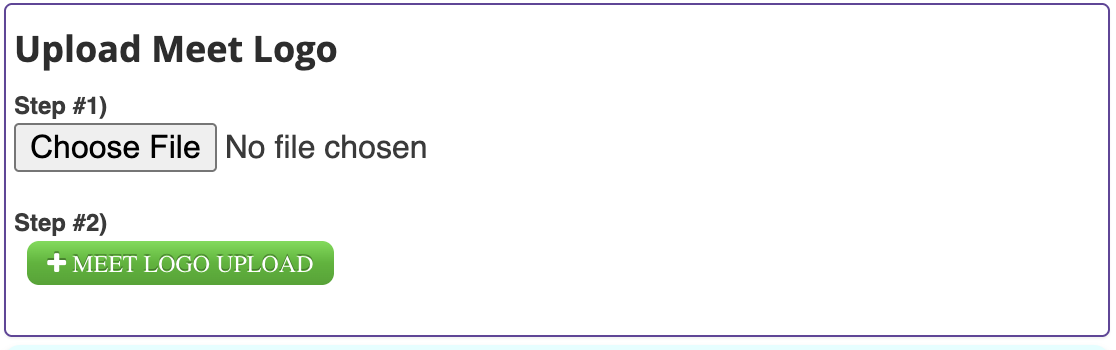
Step 11: If you have a meet logo, you can upload from the Meet Settings page.
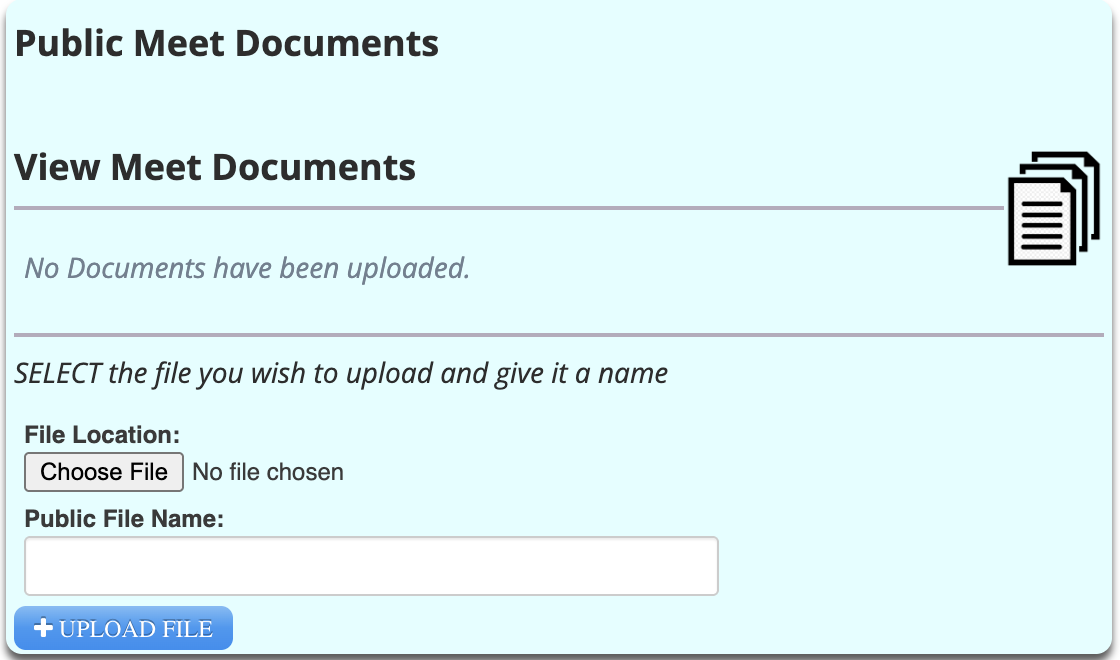
Step 12: If you have a meet flier or information you want the other teams or parents to have access to; you can upload them in the box Public Meet Documents.
Was this article helpful?
That’s Great!
Thank you for your feedback
Sorry! We couldn't be helpful
Thank you for your feedback
Feedback sent
We appreciate your effort and will try to fix the article