Step 1: Login - MY ACCOUNT - choose your association on the top right.
If you do not have a login, Create a Free ScoreFlippers Account.
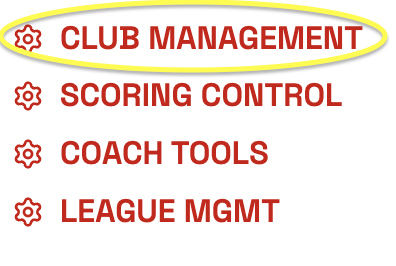
Step 2: Click on CLUB MANAGEMENT.
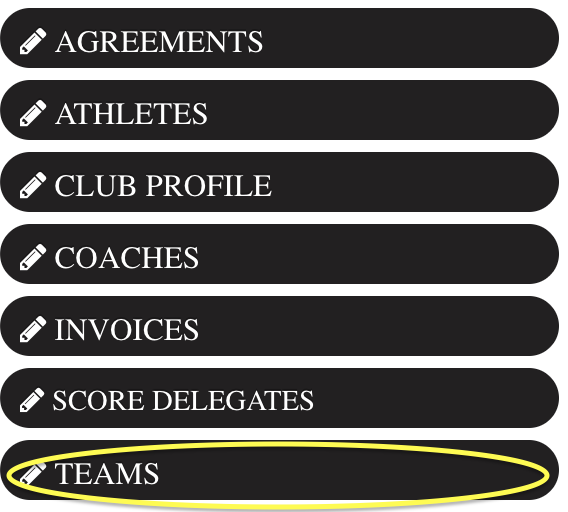
Step 3: Click on TEAMS on the left side of your screen.
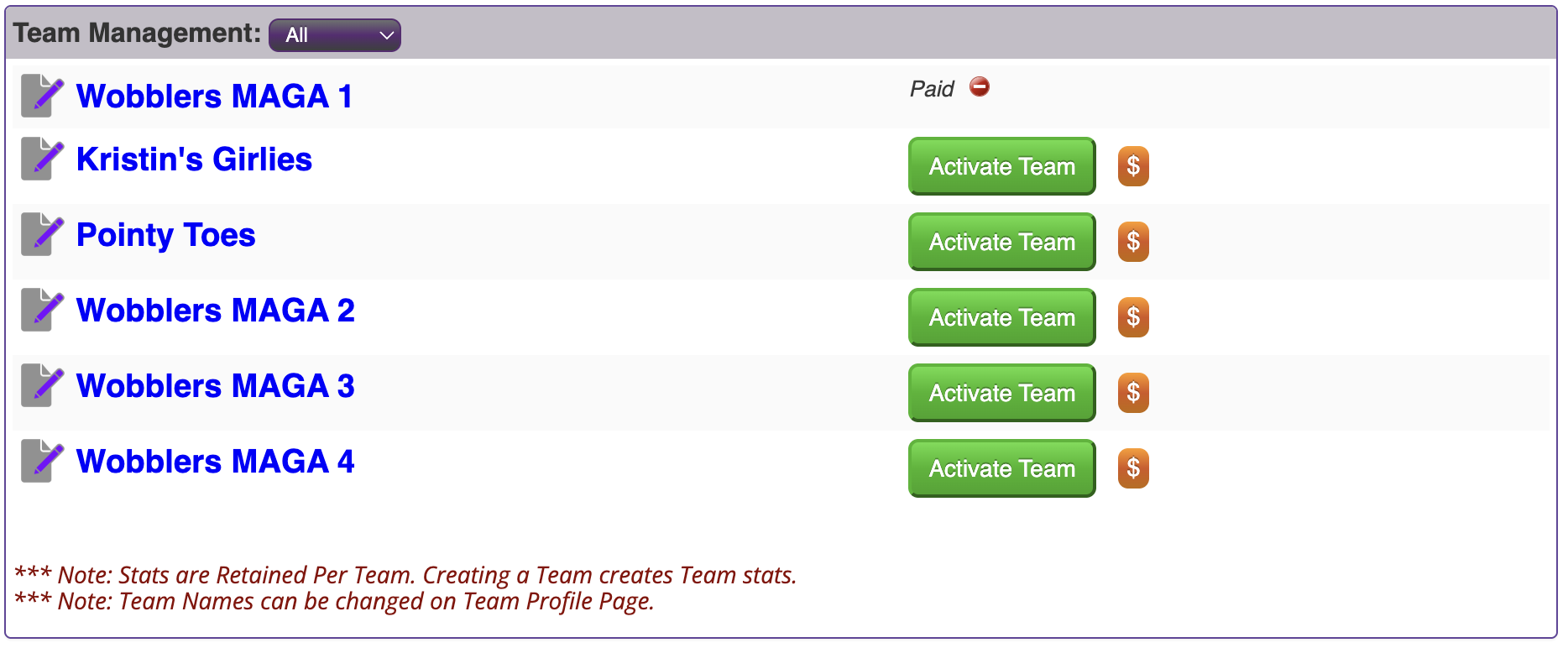
Step 4: Here you can either add a Add New Team to This Gym or you can Activate Team. (You do not need to create a new team each season. You can edit the team names and can also edit the athletes on that team.)
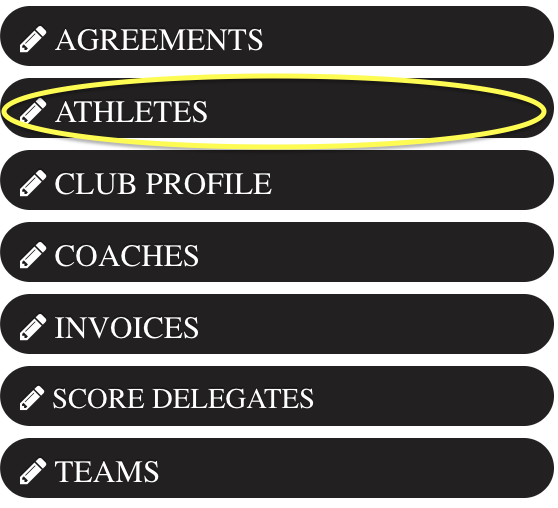
Step 5: Now you will add athletes to your roster. Click on the ATHLETES tab on the left hand side.
Step 6: Here you can Activate an athlete, Retire an athlete or REGISTER NEW ATHLETE.
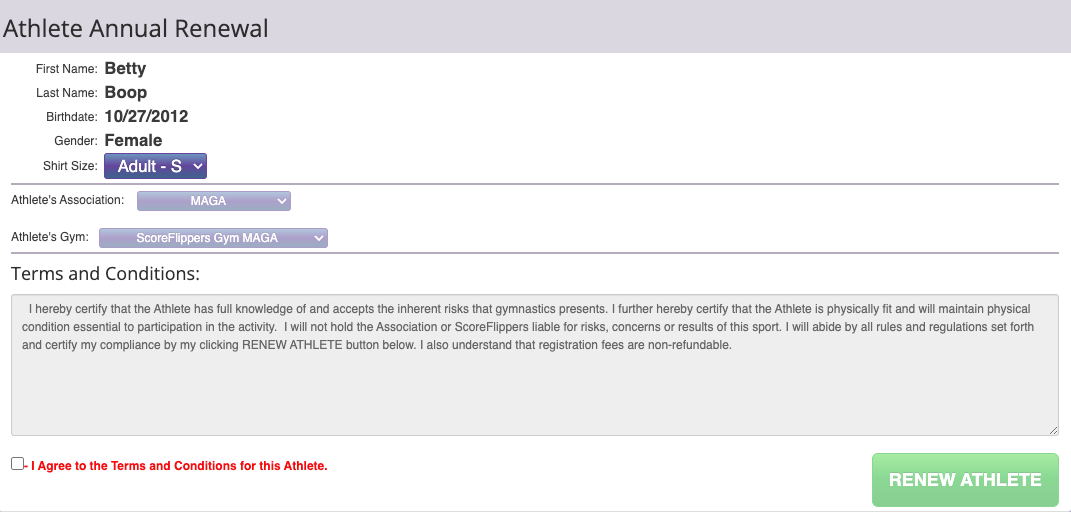
*NOTE: When you activate an athlete, complete the pop up. Verify name & birthday, enter shirt size & gym. Agree to terms by clicking in the box and hit RENEW ATHLETE.
**Note: When ATHLETE is added, will show PENDING CHECKOUT until paid for
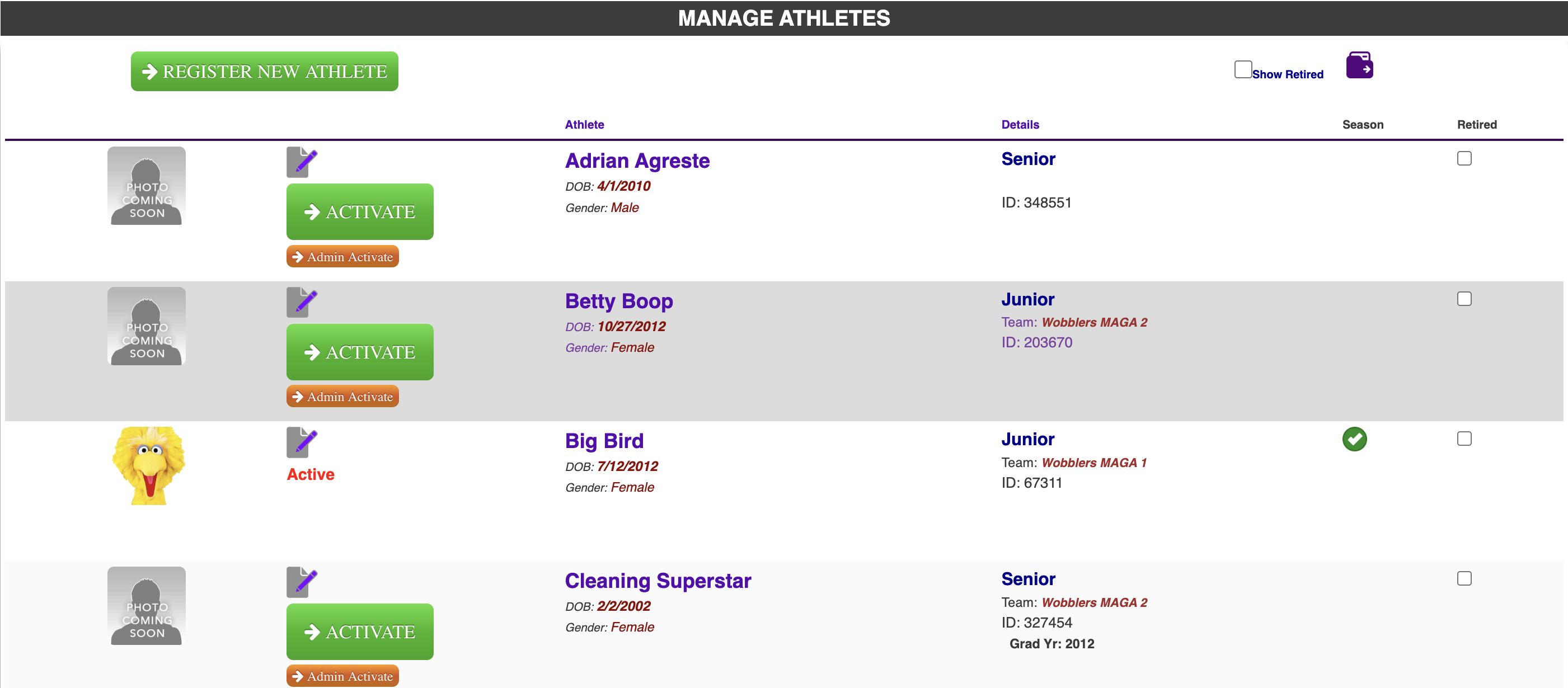
Step 7: Update Athlete Information
 | |
| Step 8: Click Register a New Athlete, type name and click search. You may find an athlete that has a match (from another team or league possibly), if this is the correct athlete click the radio button next to athlete name; if not click No Athlete Match. | 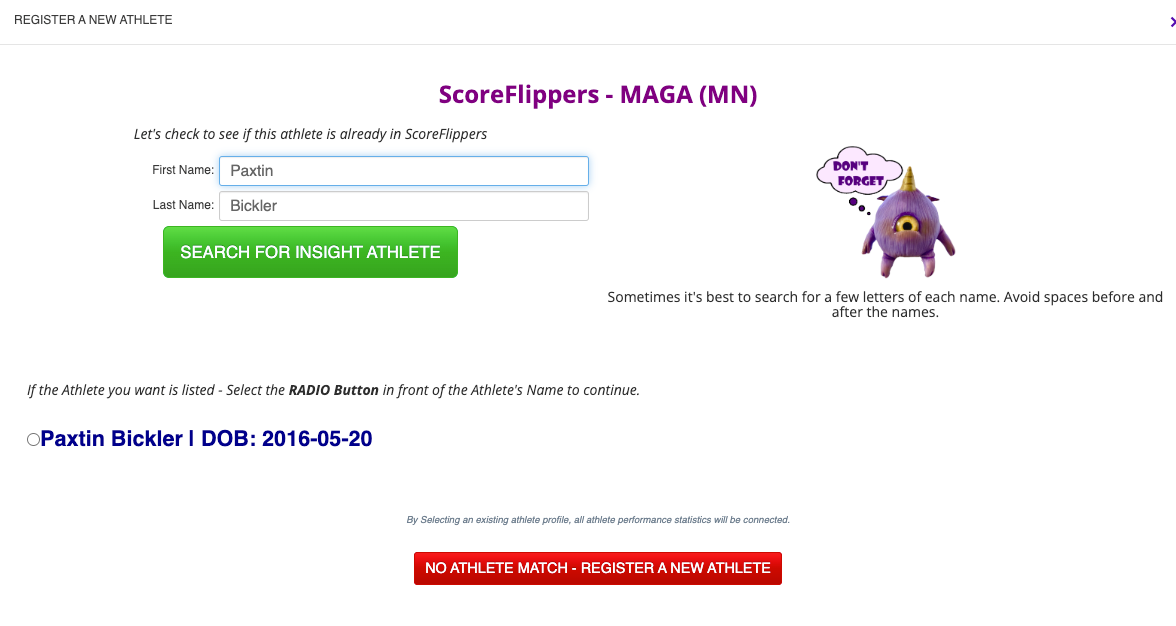 |
| Step 9: When all athletes and teams are added scroll back to the top of page & click CART & INVOICES | 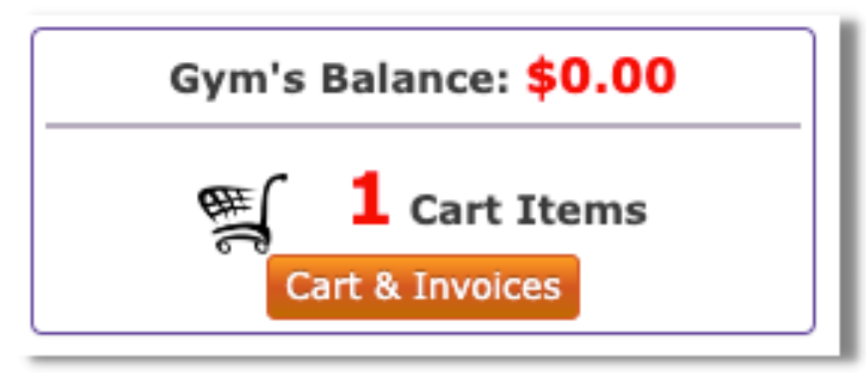 |
STEP 8: Convert items in cart to invoices -Click CHECKOUT – CONVERT TO INVOICE

Step 8: Click PAY INVOICE and follow directions for payment

Now you can add athletes to a team…
Step 9: Go back to your DASHBOARD and click the COACH TOOLS tab
| Step 10: Select the team from the drop down that you want to add kids to first. | 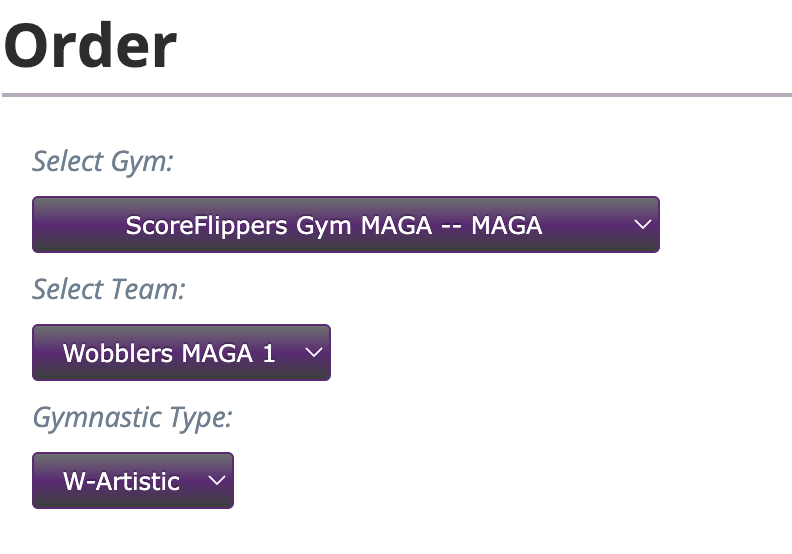 |
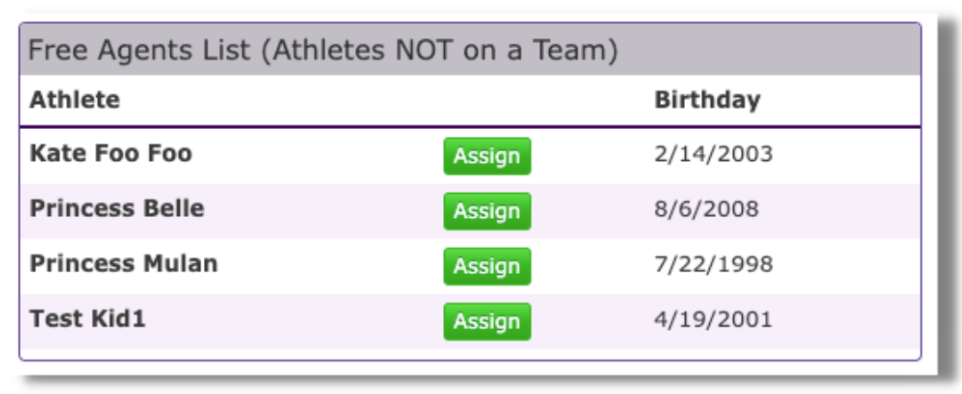
Step 11: On the right of your screen you will see a list of FREE AGENTS – click ASSIGN to the kids you want to add to this team – repeat these steps for all teams.
Was this article helpful?
That’s Great!
Thank you for your feedback
Sorry! We couldn't be helpful
Thank you for your feedback
Feedback sent
We appreciate your effort and will try to fix the article