Step 1: Adjust all of the drop downs until you find the correct Club and Team that you want to import athletes on to.
Step 2: Click CHOOSE FILE
Step 3: Does the file you are importing have Headers in Row 1? If yes, check the box.
(the Header row would be the yellow in example below)
| AthleteID | First Name | Last Name | Gender | DOB | Comp Level |
| 145678 | Mickey | Mouse | M | 04/09/2012 | Silver |
| 76543 | Minnie | Mouse | F | 09/14/2012 | 3 |
Step 4: Click LOAD ATHLETE FROM FILE
**note if you get an error page, something in your file is not correct. Things to check:
- do the columns match the example
- did you save the file as a .csv
- look for extra characters or commas in your file
If your upload was successful, you will see Raw Data populate in the blue Step #2 box.

Step 5: Pending Athletes - Resolve Similar Athletes Found - PLEASE DO THIS STEP CORRECT!!!
ScoreFlippers takes great pride in our athlete database. We don't want to have your athlete with 5 different profiles, we want your athlete's journey to be one click away and all part of the same athlete profile!
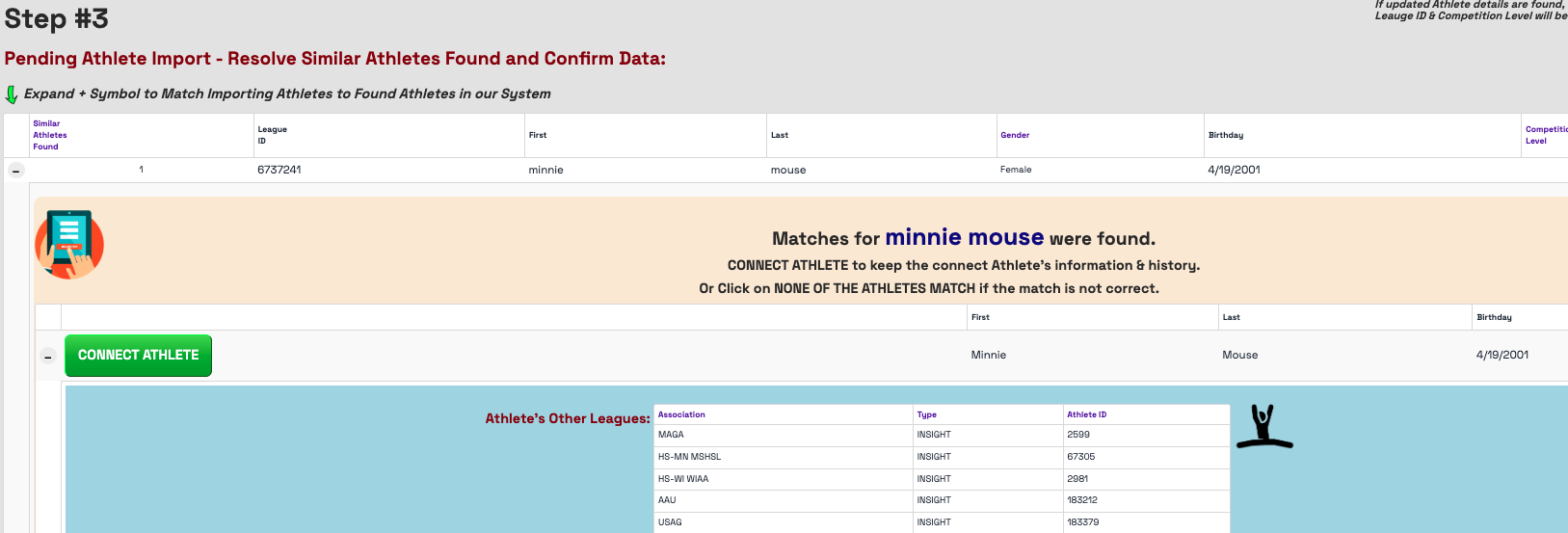
If you have athletes in the Pending Athlete Import #3, there will be a plus sign to the left of their name. Click the plus to expand the information. Athletes who match with same/similar names and birthdays will populate. When you confirm they are the same athlete, just select CONNECT ATHLETE. (repeat this step until all athletes in that step are complete)
Step 6: Verify that the athletes in Pending Athlete Import - No Similiar Athletes Found looks correct. Then select I'VE CONFIRMED MY ATHLETES AND I'M READY TO IMPORT.
You can repeat this step for each club that you need to import.
Was this article helpful?
That’s Great!
Thank you for your feedback
Sorry! We couldn't be helpful
Thank you for your feedback
Feedback sent
We appreciate your effort and will try to fix the article