Step 1: Within SCORING CONTROL of your meet, find and click the ATHLETES button along the top of the screen.

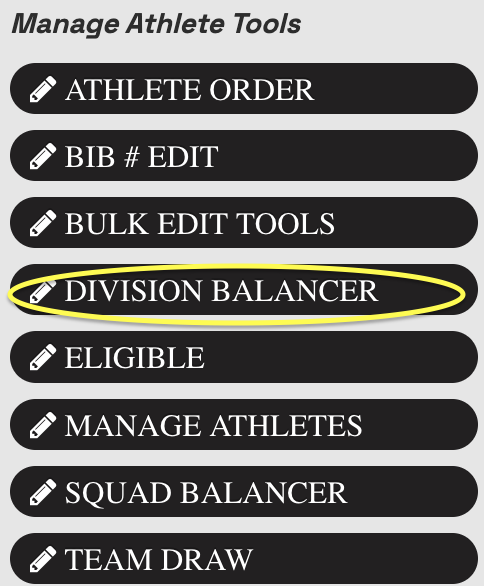
Step 2: Along the menu on the left, click DIVISION BALANCER.
Step 3: Select the Session you want to work with from the drop down.

Step 4: Select the checkbox for the level that you want to split into different age groups. (the
system will automatically use birthdays to keep similar ages together.)

Step 5: Where it says Step #3 put the number of groups you want to divide that level in to.

Step 6: Select GENERATE SIMULATION. On the right you will see the results of that simulation. You can COMMIT DIVISION SIMULATION, or you can remove the generated divisions and try again.
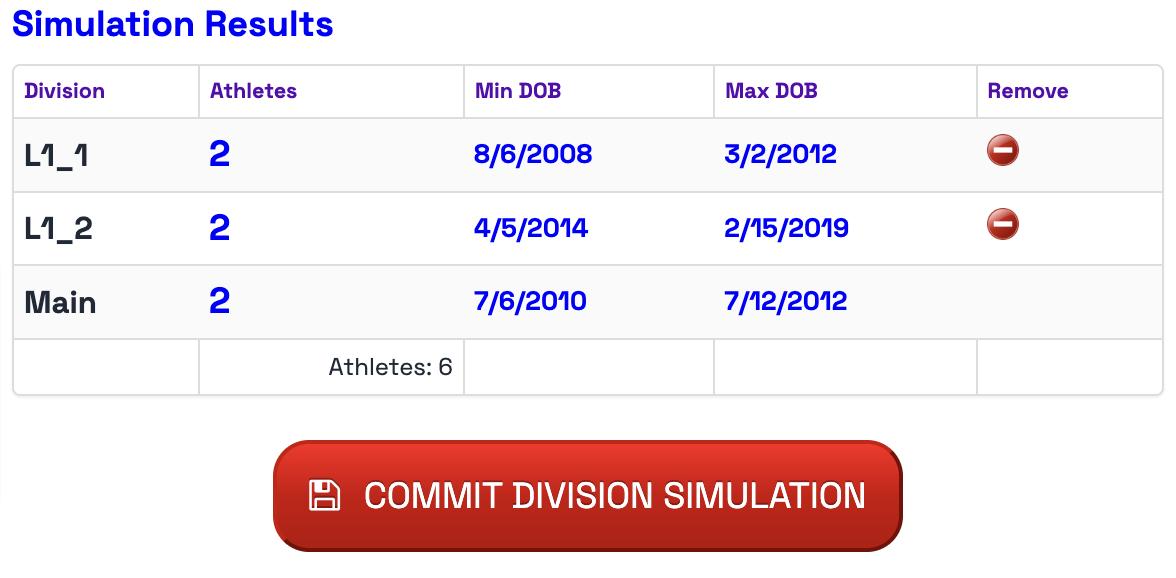
Step 7: You may also hit the plus button (+) to the left of the level to see the breakdown per kid and adjust those manually using the dropdown.

Step 8: Continue for all levels.
Was this article helpful?
That’s Great!
Thank you for your feedback
Sorry! We couldn't be helpful
Thank you for your feedback
Feedback sent
We appreciate your effort and will try to fix the article