Step 1: Within SCORING CONTROL of you meet click the ATHLETES tab.
Step 2: On the left menu click BULK EDIT TOOLS.
Step 3: You will want to use the orange Target box on the right. This is the "target" you are wanting to move the selected athletes to. You will select Session, Division and/or Squad.
***If you are working on just Divisions/Age Groups please unselect the checkbox for SQUADS. ***If you are only working on Squads, please unselect the checkbox for DIVISIONS.
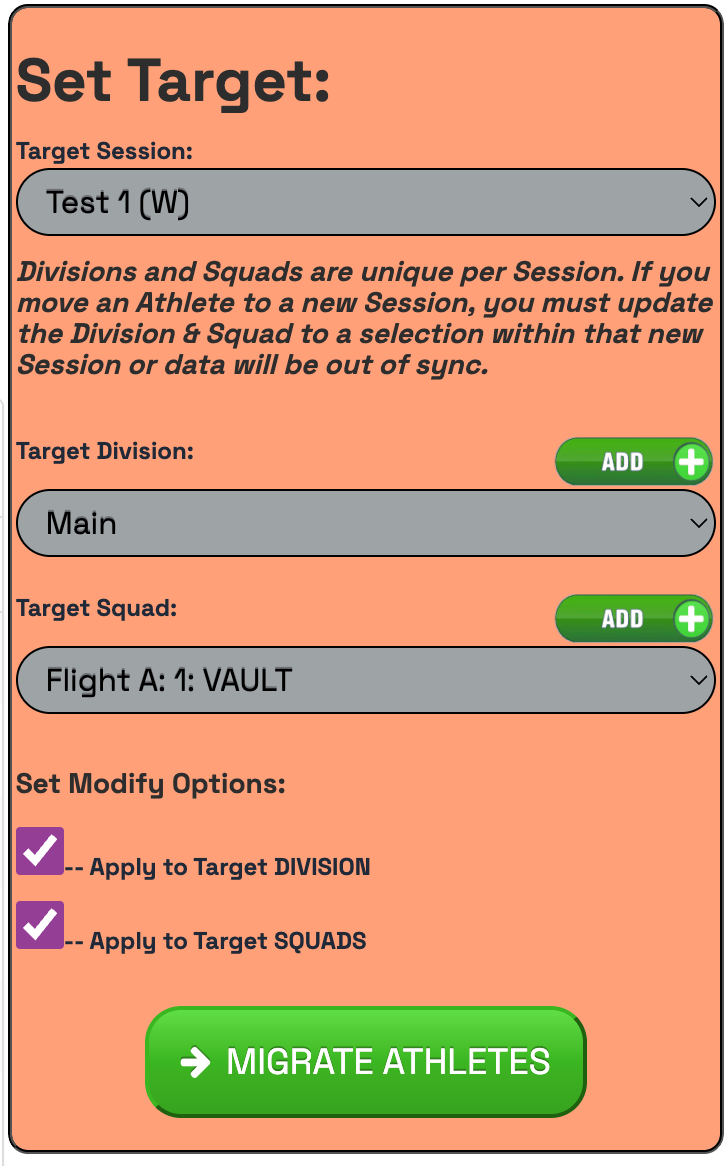
**Note: You cannot move athletes just from one Session to another Session. You do have to select an Age Division also in order to move sessions. **
Step 4: If you haven't already added your Squads - Click Here for Directions on how to add squads.
Step 5: Select or add the Target Division or the Target Squad you will be moving athletes to. If you don't already have that Division or Squad created, you can do so by clicking the ADD BUTTON.
Step 6: Now that you have the target set, refer to the graph.
***Note on graph. Each column header will adjust to that order when clicking the title name of that column. Ex: Click Athlete and it will sort that column in alphabetical order.
***Each column has a filter button. Click the filter button to select a particular group within that column. Ex: click the filter button on the column Level and select Level 3 to only show the level 3's.
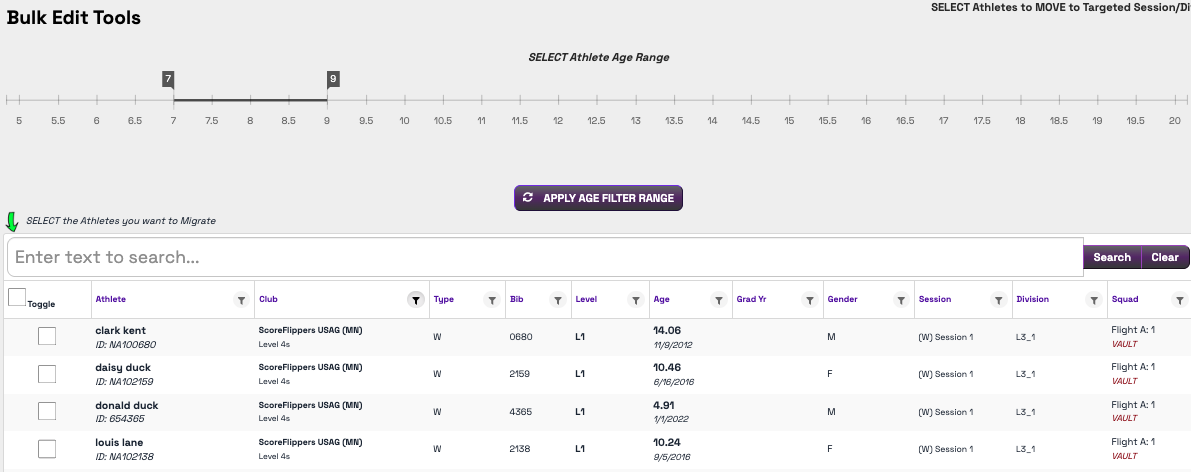
Step 7: Sort the graph to the kids who will be moving to your specified Session and Division / Squad - then go to the orange box and select MIGRATE ATHLETES.
Step 8: Do this until you get everyone moved. Refer to the REPORTS section --> Heat Sheet of SCORING CONTROL to see a visual of what you have done.
Was this article helpful?
That’s Great!
Thank you for your feedback
Sorry! We couldn't be helpful
Thank you for your feedback
Feedback sent
We appreciate your effort and will try to fix the article